Draw Cartoon - AR Sketch App
Braly JSCArt & Design
4.5747.00 Reviews
- Version
- 1.0.38
- Installs
- 10.00M
- Age Rating
- Everyone
Screenshots
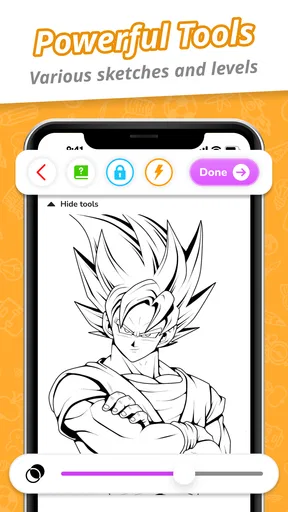
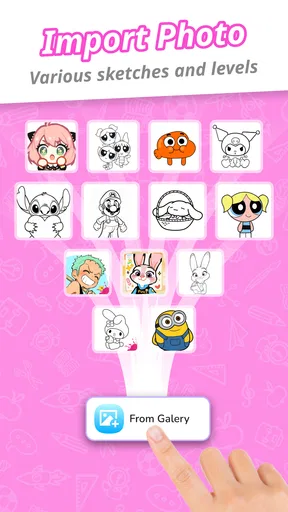
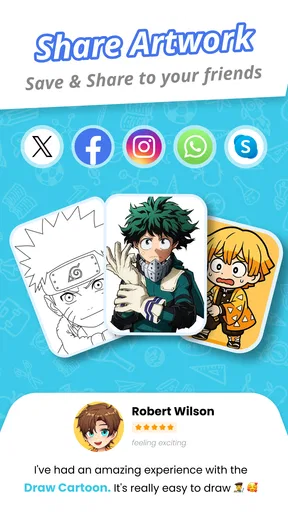
Our Review of Draw Cartoon - AR Sketch App
 Analysis by Appyee
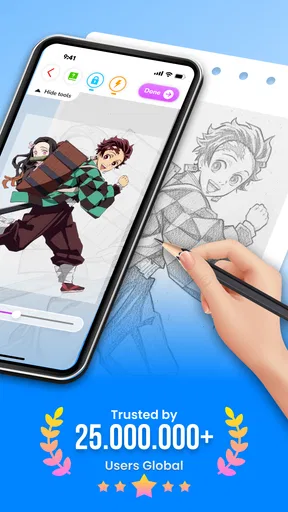
I tried Draw Cartoon - AR Sketch App as a quick way to turn a phone or tablet into a guided drawing surface, and my first impression was that it is aimed at people who want help getting started rather than a full professional studio. The app sits in the Art & Design category, comes from Braly JSC, and is free to use. Its central idea is simple: use a reference, follow visible guidance, and build a cartoon-style drawing through tracing and painting instead of facing a completely blank canvas.
That approach makes a real difference for beginners. I did not need to know how to construct a face, animal, or character from geometric shapes before putting pencil to paper. The guided process gives the drawing a starting structure, which is useful when the hardest part is deciding where the first line should go. At the same time, I would not treat it as a replacement for a serious illustration app. Its appeal is the bridge between looking at a picture and actively recreating it, not an enormous toolkit for advanced digital artists.
How it works in a shared household
The most natural use I found was on a shared device at home. One person can choose a cartoon subject, another can try the tracing stage, and someone else can add color afterward. That makes the app suitable for a short creative activity when a child, parent, or sibling wants to draw but does not know how to begin. It also works well as a low-pressure way to spend time together: one person can demonstrate the basic motion while the other concentrates on keeping the lines steady.
A realistic example would be a quiet afternoon when a child asks for help drawing a character. Instead of opening a complicated drawing program and explaining layers, brushes, and canvas settings, I would open this app and let the child follow the guided image. I could focus on holding the device at a comfortable angle and offering suggestions about color, while the child remains responsible for the actual marks. That division keeps the activity collaborative without turning it into a lesson dominated by the adult.
The shared-device angle also exposes a practical limitation. The experience is personal in the moment, but it should not be confused with a household workspace. I would decide in advance who is using the device and whether the finished work needs to be saved, shown, or handed over before the next person starts. If several people want to create separate collections of artwork, a dedicated drawing service with clearer project management would be more convenient.
For a quick turn-taking activity, however, the simplicity is a strength. There is less temptation to spend the whole session adjusting technical settings. The person drawing can concentrate on shape, pressure, color choices, and patience. The best shared-use value is the guided starting point, not advanced collaboration.
What to prepare before handing over the device
I recommend setting up the device before inviting someone else to draw. A larger screen is easier for tracing than a small phone display, especially when the user is still learning how to keep a finger or stylus on the intended line. Brightness, viewing angle, and a stable surface matter more here than they do in a casual scrolling app because small visual details guide the whole activity.
I would also keep the first session short and choose a simple subject. Starting with a detailed cartoon can make the app feel harder than it is, because the user has to coordinate many small movements before seeing a satisfying result. A simpler outline lets the person understand the relationship between the reference and the drawing process. Once that feels comfortable, more elaborate images become less intimidating.
Another useful boundary is deciding whether the goal is accuracy or personal expression. If the user is expected to copy every line precisely, the activity can become frustrating. I prefer treating the reference as scaffolding: trace enough to understand the structure, then experiment with color or small changes. That makes the app feel creative rather than like a test of hand steadiness.
Because the app is free and carries an Everyone content rating, it is easy to consider for a mixed-age household. Still, an age label does not replace a quick adult check of the device environment. I would look at the screen together with a younger user, explain which controls are relevant, and keep the session focused on drawing. That is especially sensible on a shared phone or tablet where other apps, notifications, and personal material may be nearby.
Keeping accounts and personal boundaries clear
For household use, I would not assume that one drawing session creates separate personal spaces for different family members. The safest habit is to treat the app as an activity on the current device rather than as a private family gallery. If a teenager wants to develop a consistent portfolio, or if several adults need independent projects, a more structured art application with explicit project organization may be a better fit.
This does not make the app unsuitable for families. It simply changes how I would use it. I would use it for shared practice, occasional sketches, and guided experiments, while keeping important personal artwork in a separate place. That separation avoids confusion about whose work is being edited and prevents a casual session from becoming the default storage system for everyone in the home.
I also prefer explaining the handoff clearly: finish the current drawing, show it to the next person, and avoid changing another person’s work without asking. That sounds obvious, but guided drawing apps are often used spontaneously, and a shared device can make ownership unclear. A small household rule makes the experience more pleasant without requiring invented controls or complicated supervision.
Learning the tracing and painting workflow
The app’s main advantage is that it reduces the blank-page problem. In a conventional drawing app, I might have to choose a brush, create a canvas, select a reference, and work out proportions independently. Here, the reference-led approach gives me a path to follow. That is particularly useful for someone who understands what they want to draw but lacks confidence in freehand construction.
Tracing is also more educational than it first appears. When I follow an outline, I begin noticing where curves change direction, how facial features relate to the head shape, and how repeated forms create a recognizable cartoon style. The result may not teach formal anatomy or perspective, but it can improve visual observation. For a beginner, that is a meaningful first step before moving to independent sketches.
The painting stage adds another kind of decision-making. Color is less intimidating when the drawing already has a clear structure, and a user can focus on combinations, contrast, and mood. I found that this makes the app approachable for people who enjoy coloring but want a stronger sense of authorship than a traditional coloring book provides. You are not merely filling printed shapes; you are building the image through a guided process.
My advice is to resist rushing through the outline. A fast, loose trace may be fine for a playful session, but slower movements produce a cleaner base for painting. I would zoom or reposition the device only when needed, rather than constantly changing the view and losing track of the overall shape. The useful trade-off is between precision and enjoyment: too much precision can make the activity tiring, while too little can leave the final image looking unfinished.
Small techniques that improve the result
One technique I found helpful is to treat major shapes as checkpoints. I finish the outer contour first, then look at the internal features, and only afterward move to color. This prevents me from spending time on tiny details before the overall proportions are stable. It is a simple workflow, but it makes the guided process feel more deliberate and gives beginners a clear order to follow.
I also recommend using a light touch when tracing on a touchscreen. Pressing harder does not necessarily make the line more accurate, and it can make the hand tire sooner. A relaxed finger movement is easier to repeat. If a younger user struggles, I would let them practice a few curves on a less important attempt rather than correcting every motion immediately.
For color, I would start with a limited palette instead of choosing a different shade for every area. Two or three main colors can make the result look more coherent and help the user understand how color choices affect the character. After that, adding a contrasting detail can make the image feel personal. This is a more useful lesson than simply selecting colors at random.
A further benefit is that the app can serve as a transition tool. Someone who begins by tracing may eventually copy the reference onto paper, sketch from memory, or modify the character into an original design. I would not expect the app alone to develop advanced drawing ability, but it can make repeated practice less intimidating. That gradual progression is one of its strongest reasons to exist.
Where it differs from ordinary drawing apps
Compared with a blank-canvas editor, this app is faster to start and easier to understand. A traditional art app usually gives more control over brushes, layers, opacity, selection, and editing. Those tools are valuable when I am designing a finished illustration, but they can overwhelm a beginner who only wants to draw a recognizable cartoon. Draw Cartoon focuses the experience around the image itself rather than around a large control panel.
Compared with a coloring app, it offers more active participation. Coloring apps are relaxing and often require less coordination, while this one asks the user to create the outline before painting. That means it can feel more rewarding for someone who wants to say, “I drew this,” but it may feel less relaxing for a person who prefers effortless coloring.
Compared with learning from a video tutorial, the app is more hands-on but less explanatory. A video can describe why a line is placed in a particular position and show several approaches. This app gives a visual path to follow, which is convenient, but it does not replace a teacher when the user wants detailed feedback about technique. I see it as practice equipment, not a complete art course.
That distinction helps clarify who should skip it. Experienced digital artists who need precise layer control, custom brushes, complex editing, or professional export workflows will probably outgrow it quickly. Someone searching for animation tools or a full illustration workspace should choose a different category of app. Draw Cartoon is better for guided creation, casual practice, and family-friendly experimentation.
Device, age, and everyday trust
The app supports devices running Android 7.0 or later, which gives it a broad place on older compatible phones and tablets. In practical terms, the drawing experience will still depend on screen size, responsiveness, and how comfortable the device is to hold. I would favor a tablet for a child or for a longer session, while a phone is perfectly reasonable for a quick attempt or for showing someone how the process works.
The Everyone rating matches the app’s general creative purpose and makes it easier to consider in a household with different ages. I would still stay nearby for a young child’s first use, not because the drawing concept is difficult, but because children may need help with device handling, choosing a suitable subject, and understanding that tracing is a guide rather than a requirement to produce a perfect copy.
Trust also means being honest about what the app can and cannot do. I would tell a child that a wobbly line is normal and that the goal is to practice, not to reproduce an artist’s work flawlessly. I would tell an adult beginner that the app can make cartoon drawing approachable, but it will not automatically teach every underlying skill. Clear expectations prevent disappointment and make the activity more enjoyable.
For a shared family device, I would establish a simple routine: use the app in a common area, keep personal conversations and unrelated notifications out of the session where possible, and decide how finished images will be shown or stored. These are household habits rather than app features, but they matter when one screen is used by several people with different levels of privacy and technical confidence.
What the adoption numbers suggest, and what they do not
The app has reached over ten million installs and holds an average rating of 4.5 from around ninety thousand ratings. That tells me it has broad appeal and that the basic concept is understandable to many users. It does not guarantee that every device or drawing style will feel equally comfortable, so I would still judge it by the intended use: guided cartoon practice rather than professional production.
It is also worth noting that the current version is 1.0.38, while the app was released on January 8, 2025. I would keep it updated through the normal app-store process, especially if the device is shared and different people depend on it. A newer build can change the feel of navigation or improve compatibility, so a household should avoid judging the entire experience from a single rushed session after installation.
Who will enjoy it most
I would recommend it to a child who likes cartoons, an adult beginner who feels blocked by a blank canvas, or a family looking for a short creative activity that does not require art supplies. It is also useful for someone who enjoys coloring but wants to participate in creating the outline. The free price removes the biggest barrier to trying it, and the guided workflow makes the first attempt less demanding than starting from scratch.
It can also help a learner practice hand control. Repeating curves, corners, and small interior details gives the hand a manageable target. I would use it for short sessions rather than marathon practice, because precision on a touchscreen becomes tiring and the creative benefit drops when the user is only trying to finish.
I would skip it if my priority were a polished portfolio, detailed digital painting, independent character design, or extensive project organization. In those cases, a full-featured illustration app is a better investment of time. I would also skip it for someone who dislikes imitation and wants every mark to be completely original from the first step; a blank canvas or sketchbook would offer more freedom.
For me, the deciding question is simple: do I want guidance or control? If I want guidance, this app gives me a friendly route into cartoon drawing. If I want control over every technical aspect of the image, I would choose a more advanced alternative and accept the steeper learning curve.
My household verdict
After using it as a guided drawing tool, I see Draw Cartoon as a practical entry point rather than a complete art environment. Its strongest quality is the way it turns uncertainty into a sequence of manageable actions: follow the reference, establish the outline, and add color. That structure works especially well when a shared device becomes the center of a short family activity.
I like that the app supports a low-pressure introduction to drawing without requiring a paid purchase. The Everyone age rating and broad Android compatibility make it easy to consider for mixed-age use, while its popularity suggests that the concept has connected with a large audience. The developer, Braly JSC, has kept the product focused on an immediately understandable activity instead of presenting it as a professional studio.
My reservations are equally clear. Shared use requires sensible boundaries because I would not rely on it as a household project manager or private portfolio space. Beginners may need help choosing a comfortable device position and resisting perfectionism. Advanced artists will find the guided format restrictive, and people seeking detailed instruction may learn more from a structured course or teacher.
My recommendation is to try it when the goal is approachable, guided cartoon drawing on a shared phone or tablet. Give each person a short turn, start with a simple subject, and treat the reference as support rather than a demand for exact copying. Used that way, it is a pleasant bridge between coloring and freehand illustration. It is not the right tool for every artist, but for a household that wants an easy creative activity with a visible result, it earns a place on the device.
Verdict
Strengths of Draw Cartoon - AR Sketch App
- AR overlays help beginners trace shapes with better proportions.
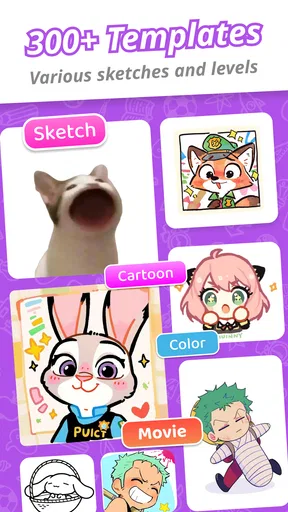
- Includes a variety of templates for practicing different drawing subjects.
- Useful for quick sketching without needing traditional tracing paper.
- Simple controls make the app approachable for casual users.
- Works well for creating short drawing sessions anywhere.
Limitations of Draw Cartoon - AR Sketch App
- Camera positioning can affect alignment and tracing accuracy.
- Some templates or tools may require in-app purchases.
- The AR view may be distracting in bright or poorly lit spaces.
- Extended use can drain the battery because the camera stays active.
- Results depend heavily on the stability of the phone or tripod.
Other Releases by Braly JSC
View All
Draw Anime - AR Tracing App
Art & Design4.5

Artrace: AR Easy Draw & Sketch
Art & Design4.6

Artmate: Drawing Together
Art & Design4.6

Colliz - DIY Wallpaper Craft
Personalization3.4
Similar Picks in This Category
View All
Canva: AI Photo & Video Editor
Canva4.8

PENUP – Drawing-sharing SNS
Samsung Electronics Co., Ltd.4.5

Crafto
Kutumb App4.6

Sketchbook
Sketchbook4.1

ibis Paint X
ibis inc.4.5

Adobe Express: AI Photo, Video
Adobe4.6
Frequently Asked Questions
What is Draw Cartoon - AR Sketch App, and how does it work?
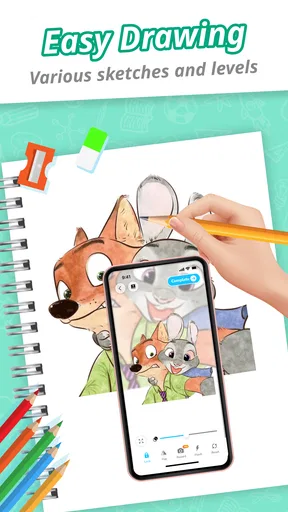
Draw Cartoon - AR Sketch App is designed to help users create cartoon-style drawings by combining reference images with augmented reality tools. After selecting or importing an image, the app can display it as an overlay on your paper through the phone’s camera. You then follow the visible lines with a pencil or pen, making it easier to reproduce characters, objects, and simple illustrations.
Do I need artistic experience to use Draw Cartoon - AR Sketch App?
No. The app is aimed at beginners as well as users who already enjoy sketching. Its main purpose is to guide your hand by showing a reference image over the real drawing surface, so you do not need to understand advanced perspective or proportions before getting started. However, the final result still depends on lighting, phone positioning, and your ability to trace carefully.
Does Draw Cartoon - AR Sketch App require an internet connection?
Basic drawing and camera features may work without a constant internet connection, particularly when you use images or content already stored on your device. Internet access can still be required for downloading templates, loading online content, receiving advertisements, or accessing certain app features. It is best to open the app once while connected and check which tools remain available offline.
Can I use my own images or only the cartoons included in the app?
The available options depend on the version installed, but apps in this category commonly provide a collection of built-in cartoon references and may also allow users to select images from their device. Imported photos can be useful for tracing pets, characters, logos, or personal sketches. Before using an image publicly, make sure you have permission to reproduce copyrighted artwork.
Is Draw Cartoon - AR Sketch App free, and are there advertisements or in-app purchases?
Draw Cartoon - AR Sketch App may be available to download at no initial cost, but free access can include advertisements, locked drawing templates, or limitations on certain tools. Some versions may offer optional in-app purchases or a subscription to remove advertising and unlock additional content. Review the current Google Play or App Store listing carefully before downloading, since pricing and features can change.
